
Operations
How to use Operations to manage scheduler jobs, start ad hoc runs, read run logs, and get failure alerts.
What Operations shows
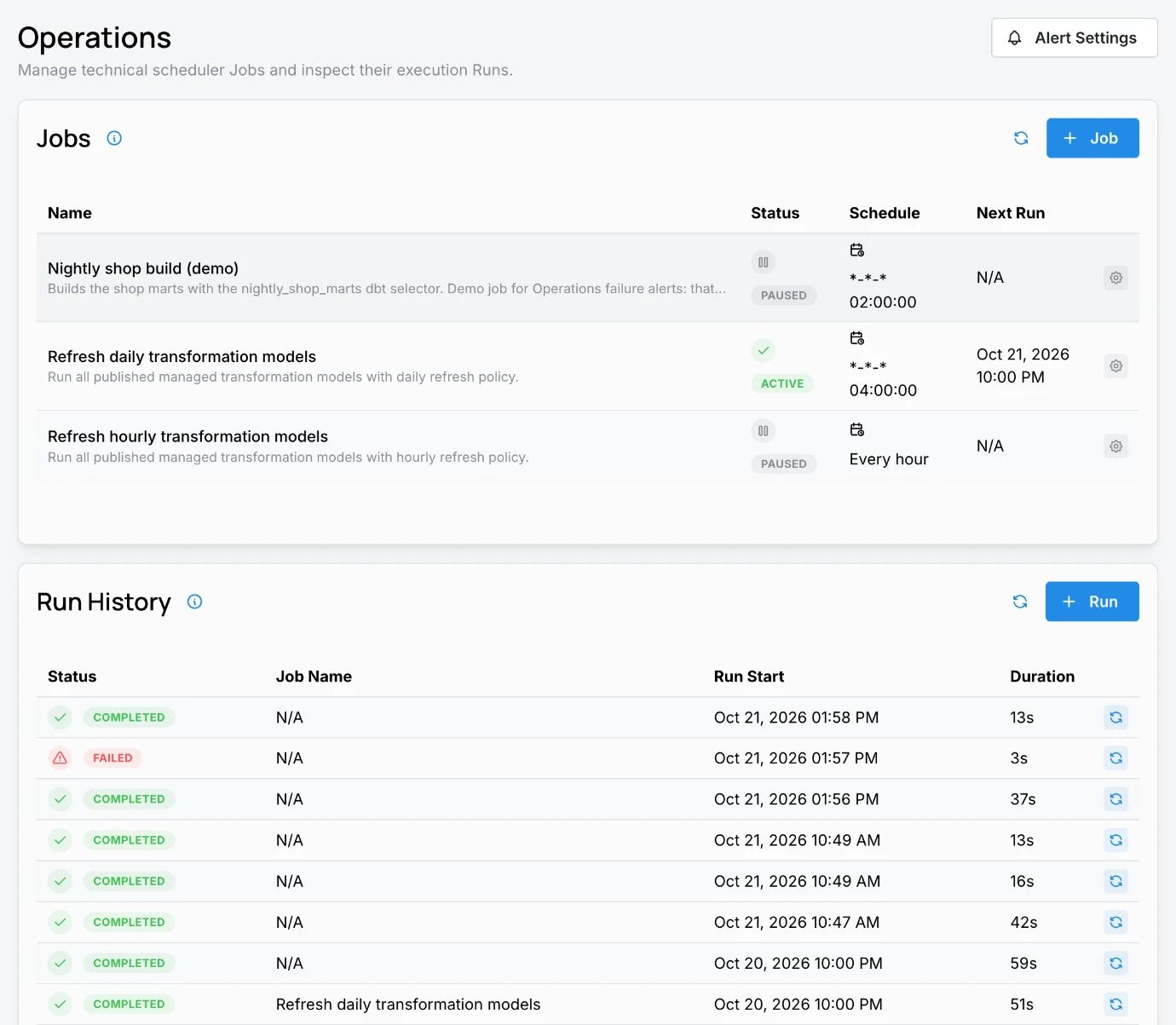
Operations is the technical view of the Stackless scheduler. It lists the Jobs that run on a schedule, such as managed Transformation Model refreshes, and the Run History of every execution, so you can see whether recurring data work succeeded and why it failed.
Operations is not the place for everything that runs on a schedule:
| You want to check | Where to look |
|---|---|
| Model refresh jobs and their runs | Operations |
| A Monitor's analysis or delivery | The Monitor's run history in Monitors |
| A scheduled dashboard export | The dashboard's scheduled export history in Dashboards |
| Source sync status | Data > Sources |
Jobs
A job is a recurring unit of work with a schedule. The Jobs table shows each job's Name, Status (ACTIVE or PAUSED), Schedule, and Next Run.
Typical managed jobs include:
- Refresh daily transformation models, which runs every published Transformation Model with a daily refresh policy.
- Refresh hourly transformation models, which runs models with an hourly refresh policy.
Create or edit a job
Users with core/jobs:write can click + Job to open Create New Job, or use a job's gear menu to Edit or Delete it. A job has:
| Field | What it controls |
|---|---|
| Job Name and Description | How the job appears in the Jobs table. |
| Status | Active jobs run on schedule; Paused jobs do not. |
| Schedule | A preset (every 15 or 30 minutes, every 1, 2, 6, or 12 hours) or Custom schedule..., which takes a calendar expression such as *-*-* 04:00:00 for 04:00 every day. |
| Timezone | The timezone the schedule is evaluated in. |
| Run Type | Incremental, Full Refresh, or Custom run options. |
Deleting a job cannot be undone. It removes the job's scheduled runs and history.
Runs
A run is one execution of a job, or an ad hoc execution started by hand.
Start an ad hoc run
Click + Run above Run History to open Create New Run. An ad hoc run executes immediately and appears in the history as soon as it starts. Runs without a job show N/A as the job name.
Run History
The Run History table shows Status, Job Name, Run Start, and Duration, newest first. The page refreshes automatically about once a minute.
From a run's actions you can Cancel Run while it is still in progress, or Re-run it.
Run statuses
| Status | Meaning |
|---|---|
| Pending | Accepted and waiting to start. |
| Starting | Being prepared for execution. |
| Running | Currently executing. |
| Cancelling | A cancel was requested and is being applied. |
| Completed / Success | Finished without a reported failure. |
| Failed | Stopped with an error. Open the run logs for details. |
| Cancelled | Stopped before completion. |
Run logs
Click a run to open its Run logs drawer. The drawer has its own link, so you can share a specific run with a teammate or the Stackless team.
A refresh can finish as Completed even when individual models inside it failed or were skipped. Read the logs, or rely on failure alerts, before assuming every model refreshed.
Failure alerts
Click Alert Settings to open Failure alerts. When Send failure alerts is on, Stackless sends a message when a job in Operations fails, or when a refresh leaves models failed.
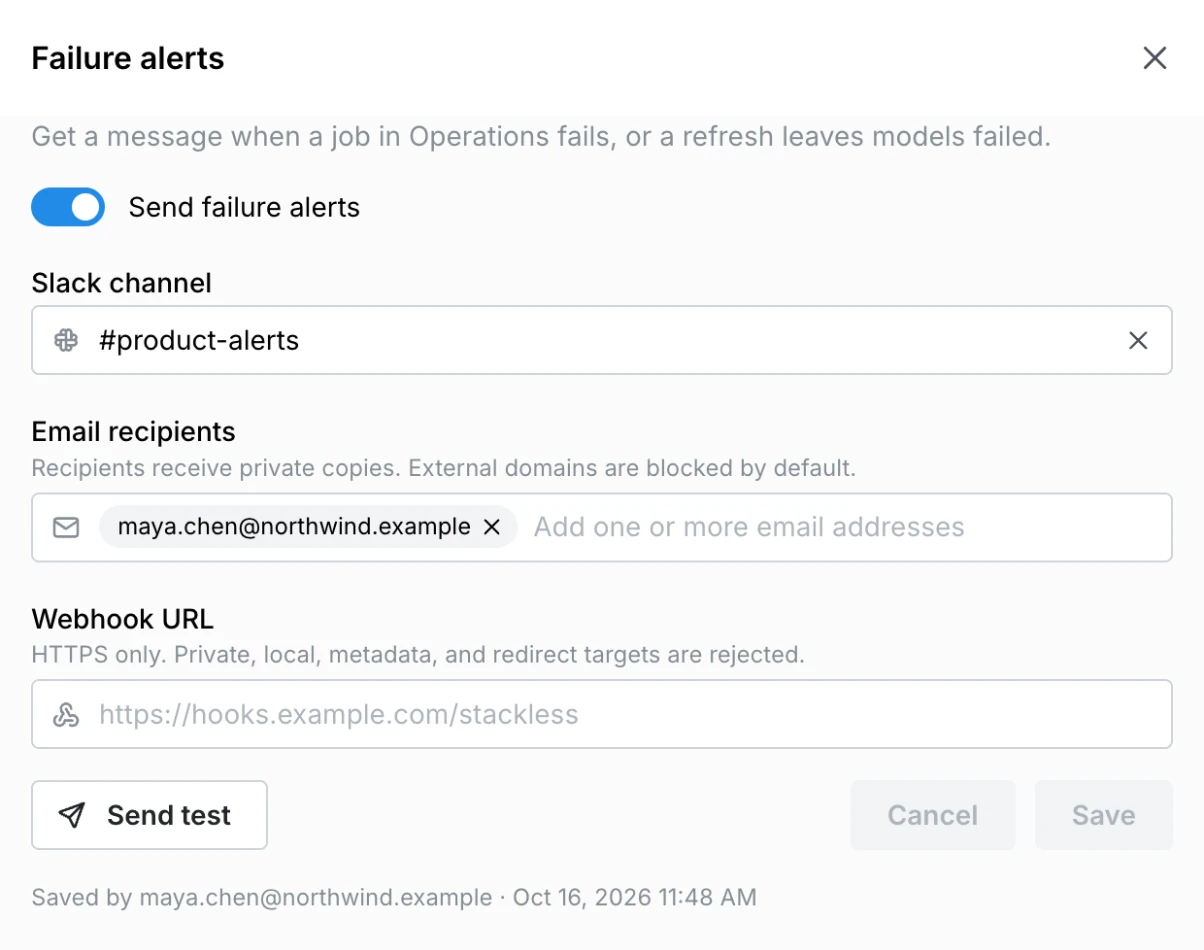
Alerts can go to any combination of:
- A Slack channel, through the workspace's Slack connection.
- Email recipients. Each recipient receives a private copy, and external domains are blocked by default.
- A Webhook URL. Only HTTPS endpoints are accepted.
Use Send test to confirm delivery before you save. Nothing is sent until at least one destination is saved. Anyone who can view Operations can see the alert settings; changing them requires core/jobs:write.
Troubleshooting stale dashboards
When a dashboard looks stale, check the layers in order:
- Data > Sources for the connector's last sync.
- Operations for the refresh job and run that should have rebuilt the models. Open the run logs if it failed.
- Data > Transformation Models for the model's freshness badge, such as "Published v1, fresh (2 days ago)".
- Data > Semantic Models to confirm the model the dashboard uses is published.
- The dashboard's freshness indicator and filters.
The Catalog lineage view shows which sources and models feed a dashboard.
Permissions
| Permission | Allows |
|---|---|
core/jobs:read | View Operations, jobs, runs, logs, and alert settings. |
core/jobs:write | Create, edit, and delete jobs, start and cancel runs, and change failure alerts. |
Reporting a failure
If a failure needs help from the Stackless team, use Help > Report an Issue (see Getting Help) and include:
- The run link from the Run logs drawer.
- The job, model, or dashboard name.
- The approximate time of the failure and what you expected to see.