
Monitors
Set up governed analyses and metric checks that run on a schedule or after a data refresh, deliver results to Slack, email, or a webhook, and keep a traceable run history.
What is a Monitor?
A Monitor is a governed analysis or deterministic check that Stackless runs for you on a schedule, or after a dataset refreshes, and delivers to the people who need it. Each run keeps a traceable history: what ran, which governed assets it used, what it found, and whether a notification was sent.
Use Monitors for recurring questions such as:
- "Every Monday at 9:00, summarize last week's revenue by channel and flag anything unusual."
- "After the orders model refreshes, alert me if yesterday's net revenue is more than 15% below the prior day."
- "Every morning, tell the operations channel which locations missed their order targets."
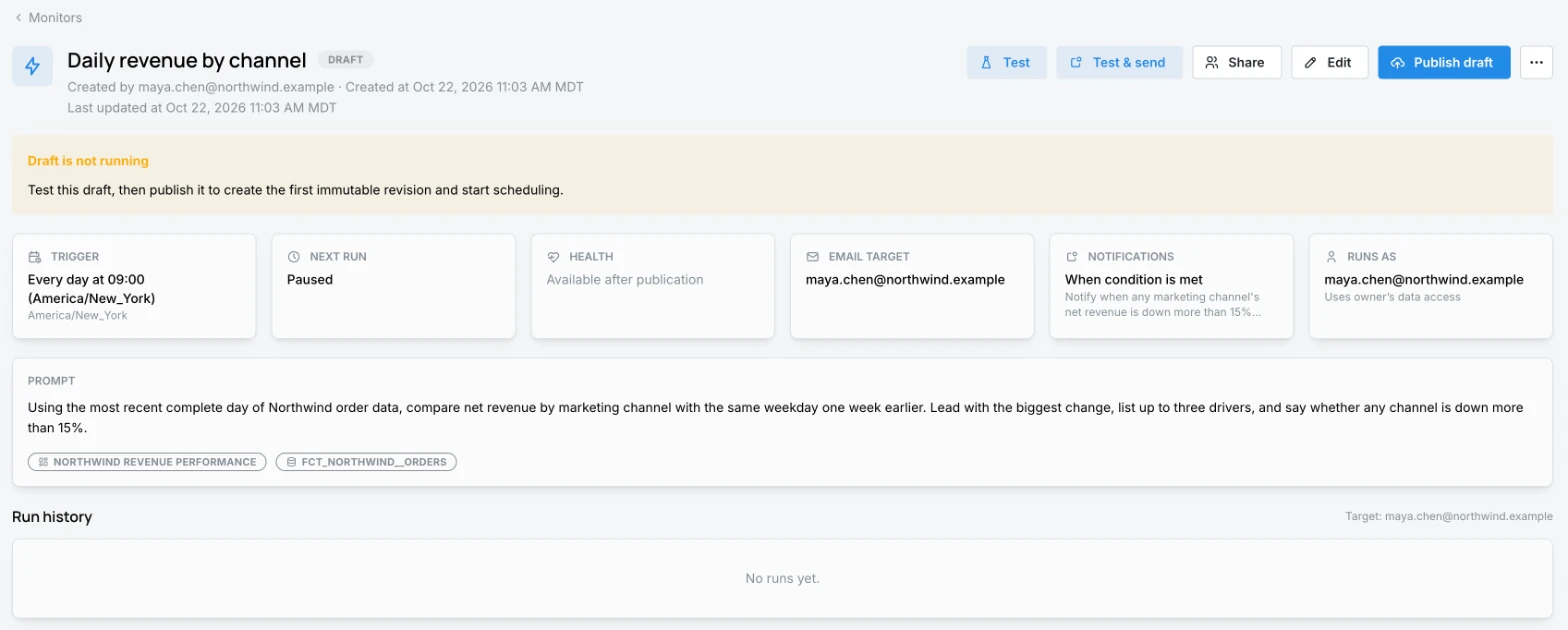
Monitors are different from Operations: Operations runs technical scheduler jobs such as model refreshes, while Monitors analyze governed data and report the result to people.
Availability
Monitors are enabled per workspace. If Monitors does not appear in the left navigation, ask your Stackless contact to enable it. Workspaces currently support one non-archived Monitor at a time; the list shows Monitor limit reached when that limit applies. Archive a Monitor to free the slot.
Monitor types
When you define a Monitor, choose how its result is produced:
| Type | How it works | Use it when |
|---|---|---|
| Guided analysis | The Agent runs your prompt against the pinned governed context and writes a summary. | You want a narrative: drivers, anomalies, context, and suggested follow-ups. |
| Defined Check | Stackless evaluates a governed metric with a machine-readable comparison. | You want a deterministic yes/no finding, such as a threshold breach. |
A Defined Check compares a Current metric with a Threshold:
- Calculation: Metric value, Difference from baseline, Absolute difference, Percent change from baseline, or Absolute percent difference.
- Finding comparator: greater than, greater than or equal to, less than, less than or equal to, equal to, or not equal to.
- Baseline: no baseline, a fixed value, the previous window, or another governed metric.
- Window: the period evaluated in hours, days, or weeks, with a window timezone and a maximum observation age.
- When query returns no rows: treat it as no findings, or as insufficient data.
Create a Monitor
Go to Monitors and click New Monitor. The editor has four parts, with a Review summary on the right.
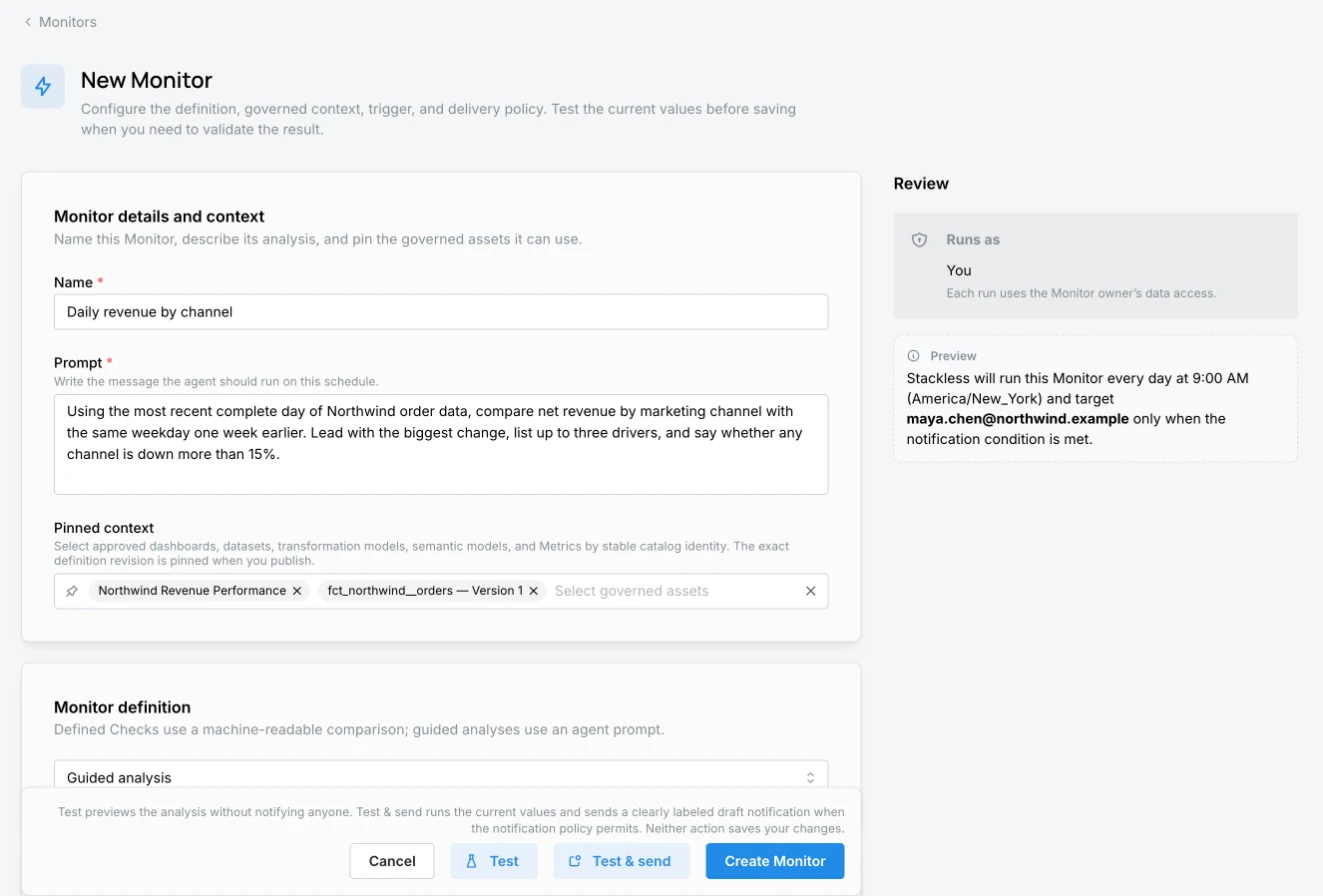
Monitor details and context
- Name, for example "Daily revenue check".
- Prompt for a guided analysis, or Input guidance for a defined check. Write the message the Agent should run, just as you would ask it in a conversation.
- Pinned context: the approved dashboards, datasets, Transformation Models, Semantic Models, and metrics the Monitor may use. Stackless pins the exact definition revision of each asset when you publish, so a later model change cannot silently change what the Monitor measures.
Monitor definition
Choose Guided analysis or Defined Check and fill in the check fields described above.
Run when
Choose the Trigger:
- Calendar schedule: Daily, Weekly, Monthly, or a custom calendar expression, with a time and timezone.
- After data refresh: run after a published dataset refreshes successfully. Use Maximum frequency to limit runs to every successful refresh, at most once per hour, at most once every 6 hours, or at most once per day.
Delivery
- Destinations: one or more of Slack, Email, and Webhook. Slack needs the workspace Slack connection, and the Stackless app must be added to private channels for thread replies. Email is limited to your organization's allowed domains. Webhooks must use HTTPS.
- Notification policy:
- Every completed run sends the result after every successful run.
- Only when a condition is met evaluates the completed result against a condition first. A defined check notifies when it finds a breach. For a guided analysis, you describe the Notification condition in plain language.
When a conditional Monitor cannot tell for certain that the condition was not met, for example because the result was ambiguous or the run failed, Stackless sends the notification anyway as a safe fallback.
Review
The Review panel shows who the Monitor Runs as: each run uses the Monitor owner's data access, so it can only read what the owner can read. It also previews the schedule and delivery in a sentence, such as "Stackless will run this Monitor every day at 9:00 AM (America/New_York) and target Slack after every completed run."
Test before you publish
Two buttons, in the editor and on a draft Monitor's page, let you check the Monitor before it goes live:
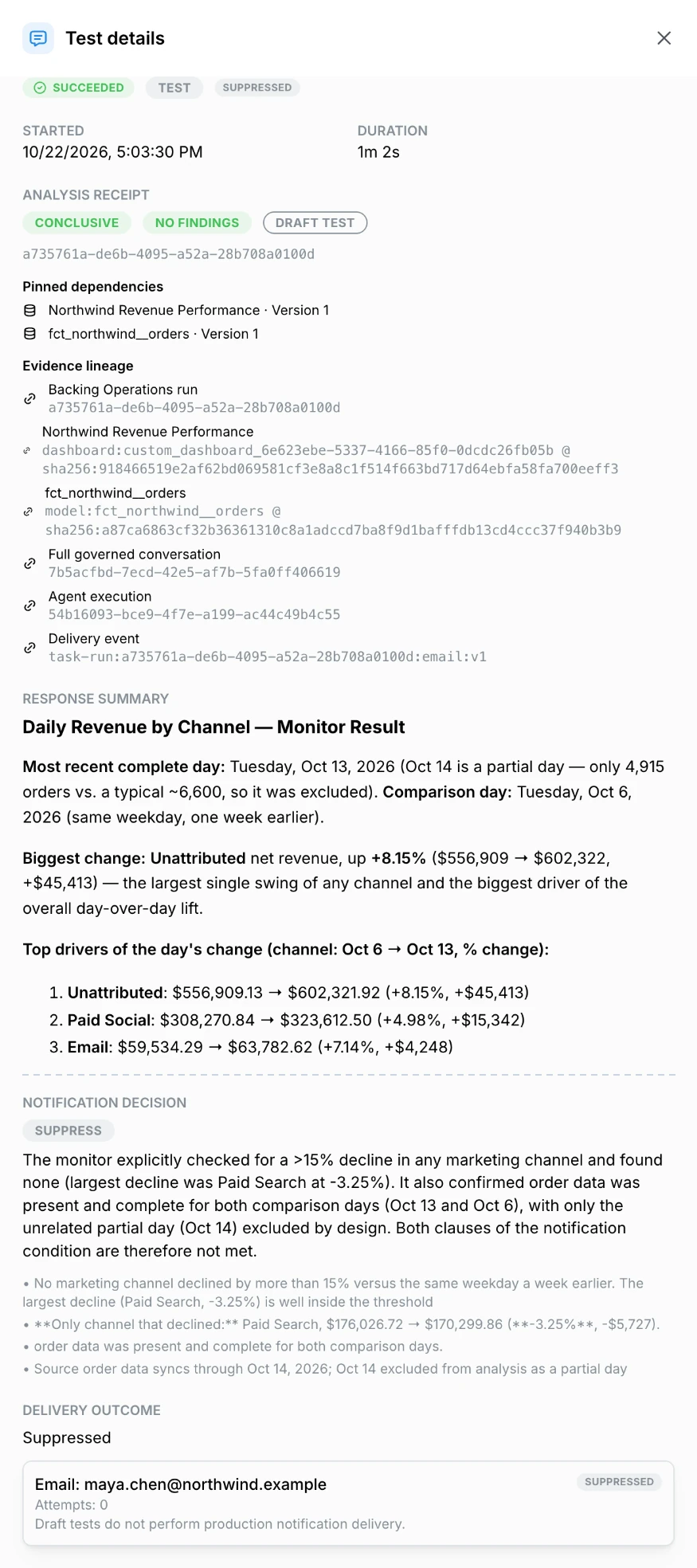
- Test runs the analysis and shows the result without notifying anyone.
- Test & send runs it and sends a clearly labeled draft notification, when the notification policy permits.
The result opens in Test details: the run status, the analysis receipt with the pinned dependencies and evidence lineage, the response, and the Notification decision the Monitor would have made. Tests are not added to the Monitor's run history.
Click Create Monitor (or Save changes) to save. Saving stores a draft: the Monitor page shows Draft is not running until you publish it.
Publish and revisions
Open the Monitor and click Publish draft to make it live. Each publish creates an immutable Revision. When you edit a live Monitor, your changes stay in a draft marked Unpublished changes while the published revision keeps running. Publish the draft to replace it, or click Discard draft.
Operate a Monitor
From the Monitors list or a Monitor's page you can:
- Run now to start a run immediately.
- Turn the Monitor On or Off, or use Pause and Resume.
- Archive a Monitor you no longer need. Archived Monitors stop running and no longer count toward the workspace limit.
- Share it with collaborators, who can view the Monitor and its run history and continue its Slack threads, but cannot edit, pause, run, or archive it.
The list shows each Monitor's schedule, destination, number of context sources, owner, and when it runs next.
Run history and run details
A Monitor's page shows its Trigger, Next run, Health, delivery target, notification policy, and Runs as owner, followed by the Run history timeline. Click a run to open Run details:
- Status, what triggered it (Scheduled, Data refresh, Manual, or Test), when it started, its duration, and the Monitor revision it used.
- The Analysis receipt: result quality and outcome, the pinned dependencies it read, evidence lineage, and the response summary.
- The Notification decision (notify or suppress) and the Delivery outcome.
- Open full conversation to continue the analysis with the Agent, or View in Slack.
Replying in a Monitor's Slack thread continues that Monitor's Agent conversation.
Statuses
| Kind | Values |
|---|---|
| Monitor | Draft, Active, Paused, Suspended, Archived |
| Run | Pending, Running, Succeeded, Failed, Cancelled, Skipped |
| Delivery | Sent, Partially delivered, Suppressed, Delivery failed, Delivery pending, Delivery in progress |
| Health | Healthy, Stale, Broken, Suspended |
A Monitor becomes Stale when it has not completed a run within its expected window: about 36 hours for daily schedules, 8 days for weekly, and 32 days for monthly.
Dependency changes
Because a Monitor pins the revisions of its governed context, Stackless notices when an upstream dataset or model changes. The Monitor page flags these as Dependency change needs review or Dependency change blocked execution, and records them in Safety and approval history. Review the change, update the Monitor if needed, and publish a new revision.
Permissions
| Permission | Allows |
|---|---|
core/monitors:read | List and view the Monitors you are authorized to see, and their run history. |
core/monitors:author | Create and edit Monitor definitions, run draft tests, and manage collaborators. |
core/monitors:publish | Publish and operate your own Monitors: publish, run now, pause, resume, and archive. |
core/monitors:approve_actions | Approve action-enabled Monitor revisions. A revision's author cannot approve their own actions. |
core/monitors:admin | Administer Monitor ownership, lifecycle, and recovery. |
The default editor role includes read, author, and publish. Action-enabled Monitors, which take actions rather than only reporting, are not yet available in the Monitor editor.
Writing good Monitor prompts
- Name the metric, period, and comparison: "Compare yesterday's net revenue with the same weekday last week."
- Pin the governed models and dashboards the Monitor should use instead of describing raw tables.
- Say what a useful result looks like: "Lead with the one change that matters most, then list up to three drivers."
- For conditional notifications, write a condition that can be checked: "Notify only if any channel's revenue is down more than 20%."