
Administration
Invite users, manage roles and permissions, choose which warehouse schemas Stackless can use, and connect Slack.
Settings overview
Workspace administration lives under Settings in the lower-left navigation:
| Group | Page | What it manages | Who can open it |
|---|---|---|---|
| Workspace | Users & Roles | Users, roles, permissions, and per-role data and dashboard access. | Users with the admin role. |
| Workspace | Slack | The Slack workspace Stackless delivers alerts to. | core/slack_integration:read to view, :write to change. |
| AI | Agent Data Access | Which warehouse schemas Stackless indexes for the Catalog and the Agent. | Users with the admin role. |
Other users who open these pages see Access Denied.
Some controls are reserved for the Stackless team rather than workspace administrators: managing the permission list, setting user privileges, and resending invitations. Contact Stackless when you need one of these.
Users
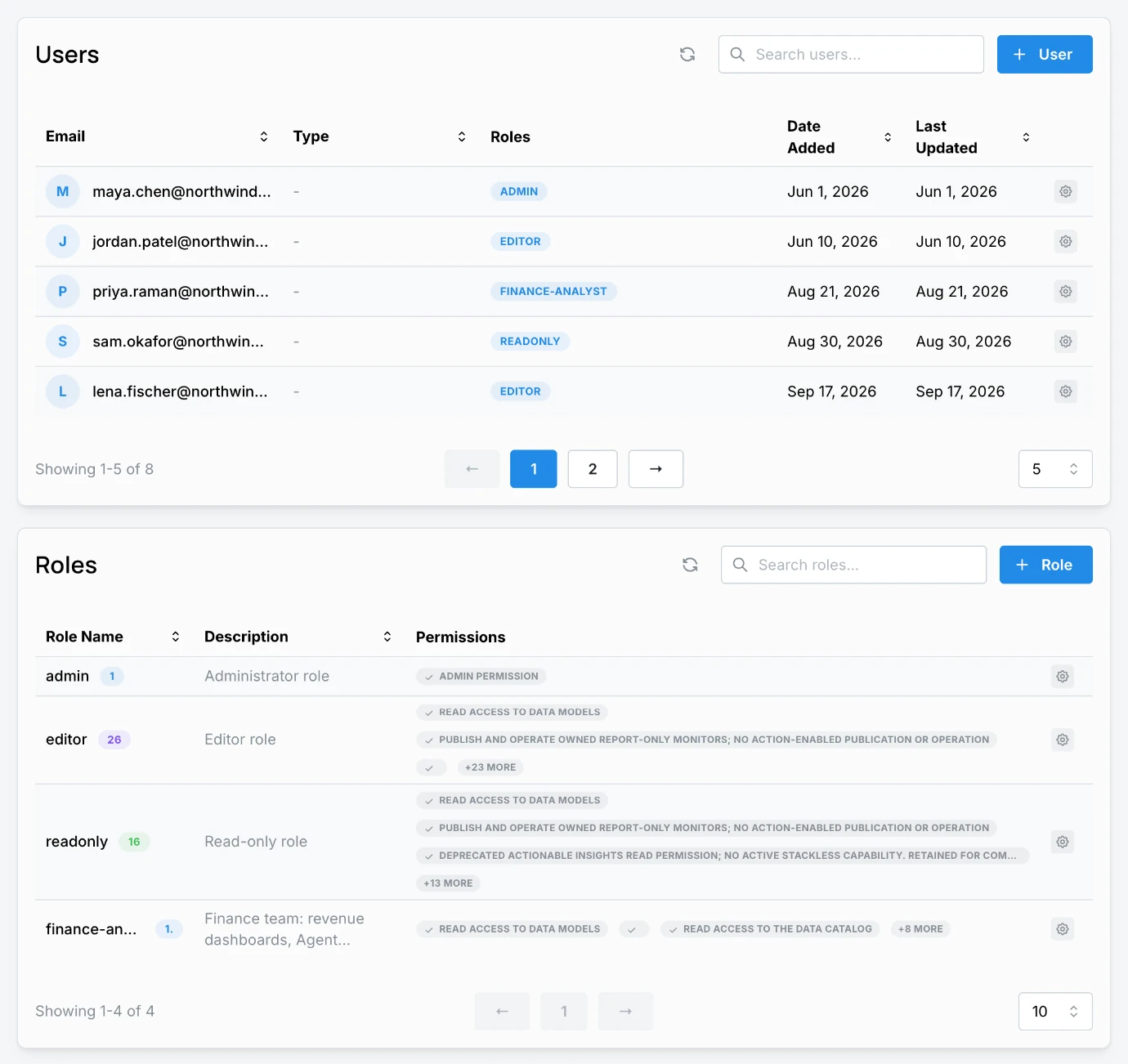
The Users table shows each user's Email, Type, Roles, Date Added, and Last Updated. Use Search users... to find someone.
Invite a user
- Click + User.
- Enter the Email Address and click Send Invitation. The user receives an invitation email with a temporary password.
- The Edit User drawer opens. Select one or more Roles and click Save Changes.
A user's access is the combination of all their roles. If an invitation expires or is lost, contact Stackless to resend it; each resend issues a new temporary password and the previous one stops working.
Edit or remove a user
Use the row menu to Edit a user's roles or Delete the user. Deleting a user cannot be undone: they lose access immediately, and any MCP connections they authorized are revoked.
Roles
The Roles table lists each role with its description and permissions. Stackless creates three roles in every workspace:
| Role | Intended for | Includes |
|---|---|---|
admin | Workspace administrators | All permissions, plus access to Settings. |
editor | Analysts and builders | Agent chat; dashboards read and write; Transformation Models and Semantic Models read and write; Catalog; Operations read and write; Monitors read, author, and publish. |
readonly | Viewers | Agent chat; read access to dashboards, models, Catalog, and Operations; Monitors read, author, and publish for their own Monitors. |
No default role includes Slack settings, scheduled dashboard exports, or role administration. Add those permissions to a custom role when needed.
Create a role
- Click + Role.
- On Basic Info, enter a Role Name (letters, numbers, dashes, and underscores) and a description.
- On Permissions, select what the role can do. Organization read, user profile read, and dashboard read are always included.
- Click Create Role.
After creating the role, open it with Edit to set its data and dashboard access.
Data and dashboard access for a role
The Edit Role drawer has two access sections below the permissions:
- Schema Access controls which warehouse schemas users with this role can query and see in the Catalog. Turn on Unrestricted catalog access to grant every enabled schema, or assign specific schemas. A role with neither grants no data access, so a user whose roles assign no schemas sees no warehouse data.
- Dashboard Access chooses which published dashboards the role can see. A published dashboard that is not assigned to any role is hidden from everyone except administrators.
Role names cannot be changed after creation. Deleting a role removes its permissions from every user assigned to it.
Permission reference
| Permission | Allows |
|---|---|
* | Everything (the admin role). |
core/agents:chat | Use the Agent and the Agent panels on Data pages. |
core/dashboards:read / :write | View dashboards / create, edit, fork, and publish dashboards. |
core/dashboards:schedule_exports | Create and manage scheduled dashboard exports. |
core/data_catalog:read | Browse the Catalog and pin catalog assets as Monitor context. |
core/dbt:read / :write | View / draft, preview, publish, and refresh Transformation Models. |
core/models:read / :write | View / create, edit, and publish Semantic Models. |
core/jobs:read / :write | View Operations / manage jobs, runs, and failure alerts. |
core/monitors:read, :author, :publish, :approve_actions, :admin | See Monitors. |
core/slack_integration:read / :write | View / connect and manage the Slack integration. |
core/sources:read / :write | View / set up and manage source connectors. |
core/rbac:read / :write | View / manage roles and their access. |
core/organization:read, core/user_profiles:read | Basic workspace and user information, included in every role. |
Agent Data Access
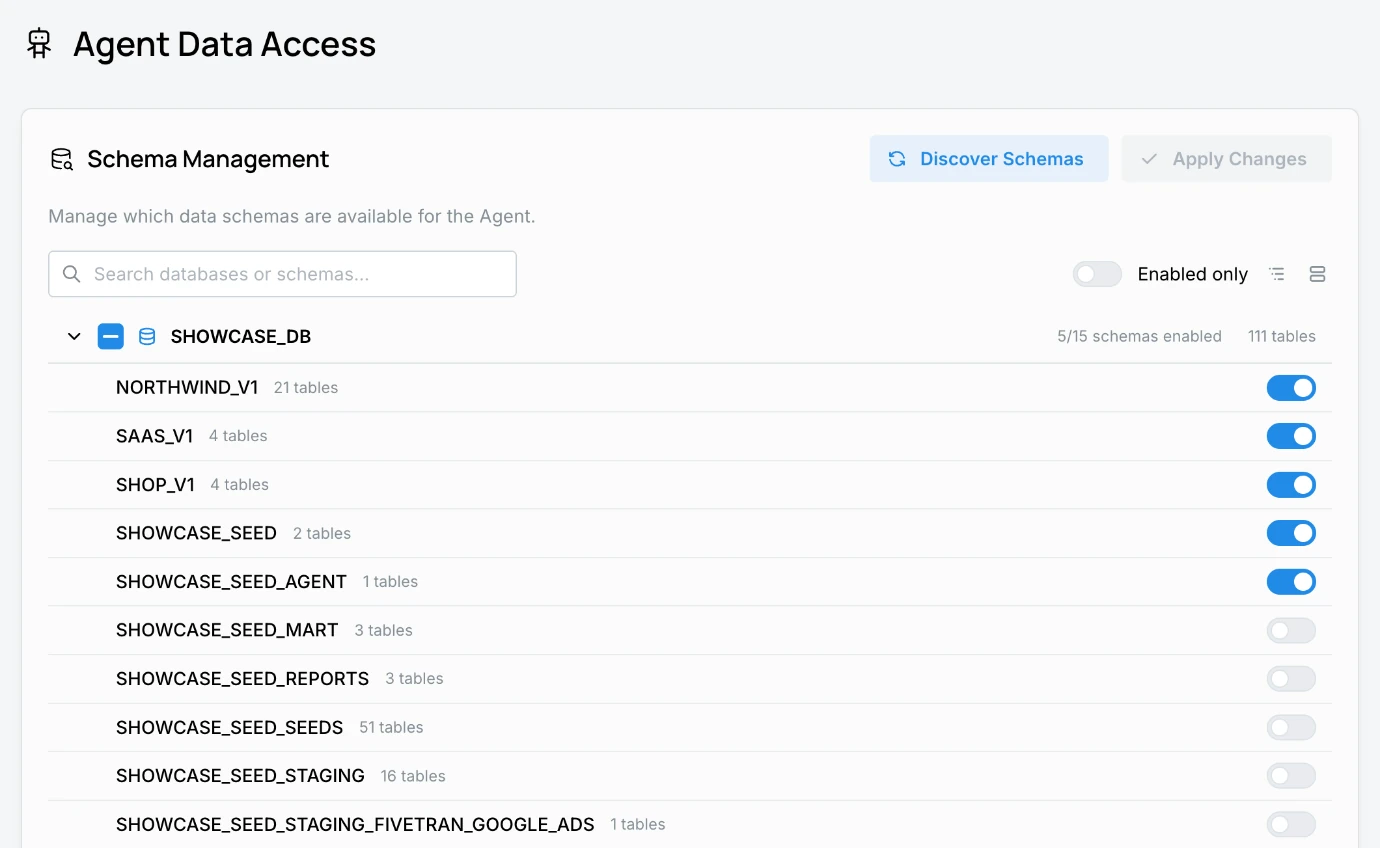
Agent Data Access is the workspace-wide list of warehouse schemas Stackless indexes. Only enabled schemas appear in the Catalog, can be queried by the Agent, and can be assigned to roles under Schema Access.
- Click Discover Schemas to pick up new databases and schemas from the warehouse.
- Use the switches to enable or disable schemas. Each database shows how many of its schemas are enabled and how many tables they contain. Enabled only narrows the list to what is already on.
- Click Apply Changes. Stackless rebuilds the Catalog with the selected schemas, which may take a few minutes.
Enabling a schema here does not grant it to anyone by itself: users still need a role with Unrestricted catalog access or that schema assigned.
Slack
The Slack page connects one Slack workspace so Stackless can deliver Monitor results and Operations failure alerts.
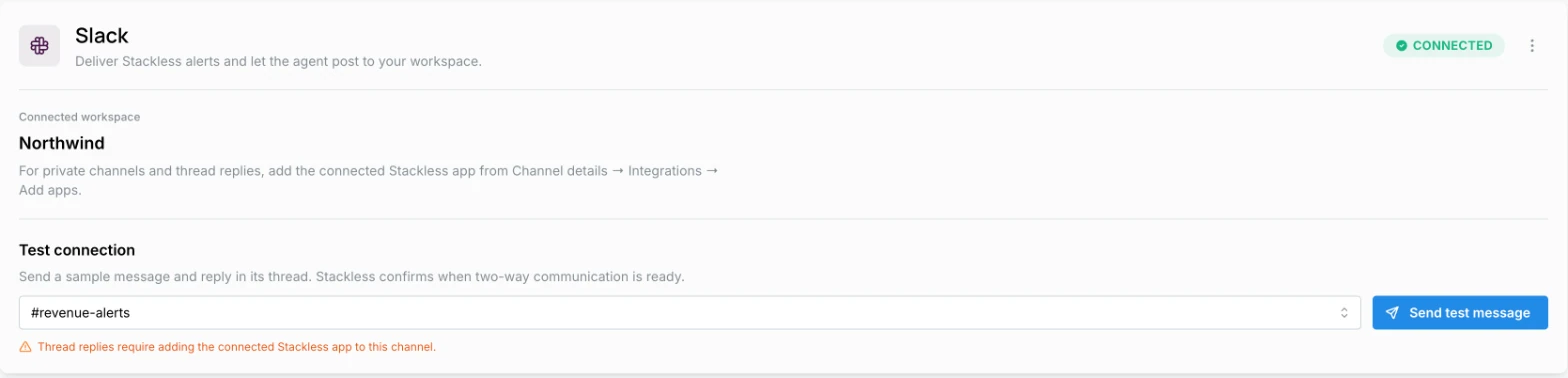
- Click Add to Slack and approve the Stackless app in Slack. The page then shows the Connected workspace.
- Under Test connection, choose a channel and click Send test message, then reply in the message's thread. Stackless confirms when two-way communication is ready.
- For private channels, and for thread replies in any channel, add the Stackless app to the channel from Channel details > Integrations > Add apps.
Use Reauthorize Slack if the connection stops working, or Disconnect Slack from the actions menu to remove it.
When someone replies in a Monitor's Slack thread, the reply continues that Monitor's Agent conversation. The Slack user must match a Stackless user with Agent and Monitor access who owns or collaborates on the Monitor. Stackless does not answer direct messages or channel mentions in Slack.